> ## Documentation Index
> Fetch the complete documentation index at: https://docs.vidocsecurity.com/llms.txt
> Use this file to discover all available pages before exploring further.
# GitHub
> Connect GitHub to Vidoc with the Vidoc GitHub App and turn on pull request reviews.
Vidoc connects to GitHub through a GitHub App. You do not give a token to Vidoc. On GitHub, Vidoc can:
* Review each pull request (PR) and write a summary comment and inline comments.
* Resolve its own comment threads when a later scan shows that the issue is fixed.
* Read commands and questions that mention `@vidoc` in PR comments.
* Record feedback from replies and 👍/👎 reactions on its comments.
* Show a check run with a **Run Vidoc** button, when status reporting is on.
For a comparison with other platforms, refer to [Supported platforms](/supported-platforms).
## Requirements
* Your repositories are on github.com. Vidoc does not support GitHub Enterprise Server.
* You install the Vidoc GitHub App, [vidoc-agent](https://github.com/apps/vidoc-agent), on your GitHub account or organization. If you are not an owner of the GitHub organization, an owner must approve the installation.
* You have the **Admin** role in Vidoc.
Your operators configure the platform connection for the installation (see the installation guide that Vidoc provides). Your installation uses its own GitHub App. The repositories must be on github.com.
When the operators complete this work, an admin connects GitHub in the web app with the steps below.
## Connect GitHub
You must have the **Admin** role in Vidoc.
In the web app, open the account menu and select **Integrations**. On the **GitHub** card, click **Connect**. If GitHub is already connected, click the card, then click **Add connection**.
On Vidoc Cloud, the onboarding flow shows the same steps when you create your organization.
In **Connect to GitHub** (step 1 of 3), click **Continue with GitHub**. Sign in to GitHub in the window that opens and authorize Vidoc. If you signed in to GitHub before, Vidoc skips this step.
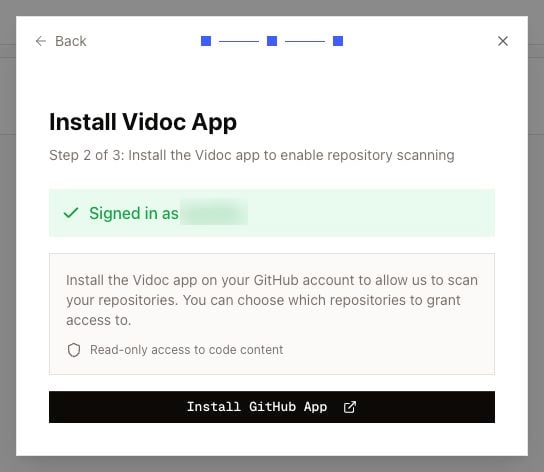
In **Install Vidoc App** (step 2 of 3), click **Install GitHub App**. On GitHub, select the account or organization. Select the repositories that the app can access, then complete the installation.
 If you are not an owner of the GitHub organization, GitHub sends an install request to the organization owners. Vidoc shows **Waiting for Approval**. When an owner approves the request, Vidoc connects the installation. Click **Check Status** to update the page.
In **Import GitHub repositories**, select the repositories to add to the current project. Click **Import selected repositories**.
If a GitHub installation exists but it is not linked to your organization, the GitHub page shows it under **Detected installations**. Click **Claim** to link it.
### Import more repositories later
1. Open **Integrations > GitHub**.
2. Open the actions menu of the GitHub account and select **Import repositories**.
The list shows only the repositories that the app can access. To add a repository to the list, change the repository access of the app on GitHub first. In GitHub, open the organization **Settings > GitHub Apps**, select the Vidoc app, and click **Configure**. Add the repository in **Repository access**.
## Turn on PR reviews for repositories
Open **Repositories** in the web app. Each repository has a **PR reviews** toggle. You must have the **Developer** role or higher to change it.
* On Vidoc Cloud, Vidoc turns on **PR reviews** automatically for the repositories that you import. On self-hosted installations, turn on the toggle for each repository.
* When PR reviews turn on, Vidoc indexes the default branch of the repository. On the Enterprise plan and on self-hosted installations, Vidoc then runs a first full scan of the default branch. Refer to [Scan types](/how-it-works#scan-types).
* You do not create a webhook. The GitHub App sends the PR events to Vidoc.
* Vidoc then reviews each new PR and each new commit on a PR.
On Vidoc Cloud, indexing and PR reviews start only when your organization has an active plan. The **Repositories** page shows a message when repositories wait for plan activation.
The **PR comments** toggle is in the actions menu of each repository. When it is off, Vidoc still scans PRs, but it does not write to GitHub. For all repository controls, refer to [Repositories](/web-app/repositories).
## GitHub specifics
| Topic | Behavior on GitHub |
| --------------------------------- | ----------------------------------------------------------------------------------------------------------------------------------------------------------------------------------------------------------------------------------------------------------------- |
| Scan triggers | A scan starts when a PR opens and when you push new commits. A change to the title, description, or labels does not start a scan. |
| Bot handle | `@vidoc` on Vidoc Cloud. On a self-hosted installation, your administrators set the handle. The summary comment shows the handle to use. |
| Commands | `@vidoc scan`, `rescan`, `restart`, and `help`. The commenter needs the write, maintain, or admin permission on the repository. Refer to [Commands](/pull-requests/commands). |
| Questions and "remember" requests | The GitHub user must be linked to a Vidoc user with access to the project. Refer to [Link your account](/pull-requests/feedback#link-your-account). |
| Replies on findings | A reply with a clear verdict creates a learning. A false-positive reply also ignores the issue. Refer to [Feedback](/pull-requests/feedback). |
| Reactions | Vidoc collects 👍 and 👎 on its inline comments. |
| Check run | When status reporting is on, Vidoc shows a check run with the name **Vidoc Security Scan**. When the scan is complete, the check has a **Run Vidoc** button. Select it to scan the PR again. You need the write, maintain, or admin permission on the repository. |
| Comment formatting | GitHub shows alert blocks as colored alerts and collapsed sections as expected. |
## Update credentials
There is no token to rotate. The GitHub App gets short-lived tokens from GitHub for each operation.
To change which repositories Vidoc can access, change the repository access of the Vidoc app in your GitHub organization settings.
## Troubleshooting
| Symptom | Cause | Fix |
| --------------------------------------------------------------------------------------------------------------------------- | ------------------------------------------------------------------------------------------------------------------------------------ | --------------------------------------------------------------------------------------------------------------------------------------------------------------------------------------------------------------------------------------------- |
| Error `Repository "/" is not accessible by the GitHub installation`, or a repository is not in the import list | The Vidoc GitHub App is not installed on the repository. | In GitHub, open the organization **Settings > GitHub Apps**, select the Vidoc app, and click **Configure**. Add the repository in **Repository access**. |
| Vidoc shows **Waiting for Approval** | You are not an owner of the GitHub organization. GitHub sent an install request to the owners. | Ask an organization owner to approve the request. Then click **Check Status**. |
| A PR has no Vidoc comment | **PR reviews** or **PR comments** is off for the repository, the app does not have access to the repository, or the scan still runs. | On the **Repositories** page, make sure that **PR reviews** and **PR comments** are on. Make sure that the app has access to the repository. Wait some minutes, then refer to [When a scan fails](/pull-requests/overview#when-a-scan-fails). |
| The summary comment shows "Currently scanning commit ..." for more than 30 minutes | The scan failed. | Write `@vidoc rescan` as a new PR comment. |
| Vidoc does not answer a question | Your GitHub account is not linked to a Vidoc user with access to the project. | Link your account. Refer to [Link your account](/pull-requests/feedback#link-your-account). |
| Vidoc replies "Repository write access is required to request a Vidoc scan." | You do not have the write, maintain, or admin permission on the repository. | Ask a person with this permission to send the command, or push a new commit. |
| No **Integrations** item in the account menu | You do not have the **Admin** role. | Ask an admin of your organization. |
If you are not an owner of the GitHub organization, GitHub sends an install request to the organization owners. Vidoc shows **Waiting for Approval**. When an owner approves the request, Vidoc connects the installation. Click **Check Status** to update the page.
In **Import GitHub repositories**, select the repositories to add to the current project. Click **Import selected repositories**.
If a GitHub installation exists but it is not linked to your organization, the GitHub page shows it under **Detected installations**. Click **Claim** to link it.
### Import more repositories later
1. Open **Integrations > GitHub**.
2. Open the actions menu of the GitHub account and select **Import repositories**.
The list shows only the repositories that the app can access. To add a repository to the list, change the repository access of the app on GitHub first. In GitHub, open the organization **Settings > GitHub Apps**, select the Vidoc app, and click **Configure**. Add the repository in **Repository access**.
## Turn on PR reviews for repositories
Open **Repositories** in the web app. Each repository has a **PR reviews** toggle. You must have the **Developer** role or higher to change it.
* On Vidoc Cloud, Vidoc turns on **PR reviews** automatically for the repositories that you import. On self-hosted installations, turn on the toggle for each repository.
* When PR reviews turn on, Vidoc indexes the default branch of the repository. On the Enterprise plan and on self-hosted installations, Vidoc then runs a first full scan of the default branch. Refer to [Scan types](/how-it-works#scan-types).
* You do not create a webhook. The GitHub App sends the PR events to Vidoc.
* Vidoc then reviews each new PR and each new commit on a PR.
On Vidoc Cloud, indexing and PR reviews start only when your organization has an active plan. The **Repositories** page shows a message when repositories wait for plan activation.
The **PR comments** toggle is in the actions menu of each repository. When it is off, Vidoc still scans PRs, but it does not write to GitHub. For all repository controls, refer to [Repositories](/web-app/repositories).
## GitHub specifics
| Topic | Behavior on GitHub |
| --------------------------------- | ----------------------------------------------------------------------------------------------------------------------------------------------------------------------------------------------------------------------------------------------------------------- |
| Scan triggers | A scan starts when a PR opens and when you push new commits. A change to the title, description, or labels does not start a scan. |
| Bot handle | `@vidoc` on Vidoc Cloud. On a self-hosted installation, your administrators set the handle. The summary comment shows the handle to use. |
| Commands | `@vidoc scan`, `rescan`, `restart`, and `help`. The commenter needs the write, maintain, or admin permission on the repository. Refer to [Commands](/pull-requests/commands). |
| Questions and "remember" requests | The GitHub user must be linked to a Vidoc user with access to the project. Refer to [Link your account](/pull-requests/feedback#link-your-account). |
| Replies on findings | A reply with a clear verdict creates a learning. A false-positive reply also ignores the issue. Refer to [Feedback](/pull-requests/feedback). |
| Reactions | Vidoc collects 👍 and 👎 on its inline comments. |
| Check run | When status reporting is on, Vidoc shows a check run with the name **Vidoc Security Scan**. When the scan is complete, the check has a **Run Vidoc** button. Select it to scan the PR again. You need the write, maintain, or admin permission on the repository. |
| Comment formatting | GitHub shows alert blocks as colored alerts and collapsed sections as expected. |
## Update credentials
There is no token to rotate. The GitHub App gets short-lived tokens from GitHub for each operation.
To change which repositories Vidoc can access, change the repository access of the Vidoc app in your GitHub organization settings.
## Troubleshooting
| Symptom | Cause | Fix |
| --------------------------------------------------------------------------------------------------------------------------- | ------------------------------------------------------------------------------------------------------------------------------------ | --------------------------------------------------------------------------------------------------------------------------------------------------------------------------------------------------------------------------------------------- |
| Error `Repository "/" is not accessible by the GitHub installation`, or a repository is not in the import list | The Vidoc GitHub App is not installed on the repository. | In GitHub, open the organization **Settings > GitHub Apps**, select the Vidoc app, and click **Configure**. Add the repository in **Repository access**. |
| Vidoc shows **Waiting for Approval** | You are not an owner of the GitHub organization. GitHub sent an install request to the owners. | Ask an organization owner to approve the request. Then click **Check Status**. |
| A PR has no Vidoc comment | **PR reviews** or **PR comments** is off for the repository, the app does not have access to the repository, or the scan still runs. | On the **Repositories** page, make sure that **PR reviews** and **PR comments** are on. Make sure that the app has access to the repository. Wait some minutes, then refer to [When a scan fails](/pull-requests/overview#when-a-scan-fails). |
| The summary comment shows "Currently scanning commit ..." for more than 30 minutes | The scan failed. | Write `@vidoc rescan` as a new PR comment. |
| Vidoc does not answer a question | Your GitHub account is not linked to a Vidoc user with access to the project. | Link your account. Refer to [Link your account](/pull-requests/feedback#link-your-account). |
| Vidoc replies "Repository write access is required to request a Vidoc scan." | You do not have the write, maintain, or admin permission on the repository. | Ask a person with this permission to send the command, or push a new commit. |
| No **Integrations** item in the account menu | You do not have the **Admin** role. | Ask an admin of your organization. |