

Findings needs the Enterprise plan on Vidoc Cloud. Included in self-hosted installations.
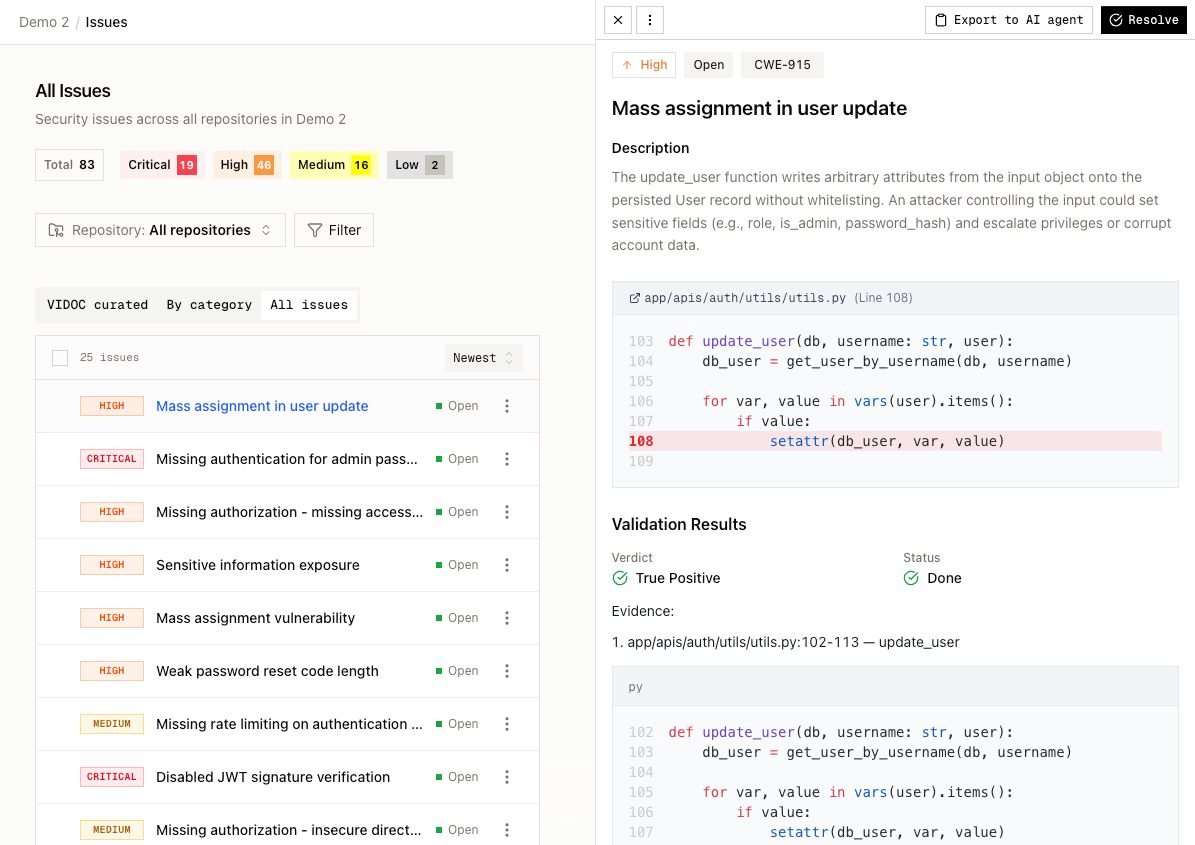
Views
Filters and sort
Use All repositories to show the findings of one repository. Click Filter to set these filters:
In All issues, sort by Severity (high first), Severity (low first), Newest, or Oldest.
The page URL keeps your filters. Copy the URL to share a filtered view.
Change status
You need the Developer role or higher.- Open the row menu (⋮) or the menu in the issue panel.
- Select Mark as, then select a status:
- Open: the issue is active.
- Ignored: you accept the issue or decide not to fix it. Type a reason of 20 characters or more.
- False positive: the finding is not a real issue. Type a reason of 20 characters or more. Vidoc stores the finding as Ignored with your reason.
- Closed: the issue is fixed or closed.
- Click Confirm.
middleware/validate.ts”.
Scans also change the status automatically. For example, Vidoc closes a finding when a scan shows that the code no longer has the issue. Vidoc does not reopen an issue that a user set to Ignored or Closed. For the full lifecycle, refer to How Vidoc works.
Change severity
Select Change severity, then select Critical, High, Medium, Low, or Informative. You need the Admin or Security Engineer role.Bulk actions
- Select the checkboxes of the rows. The header checkbox selects all rows on the current page.
- Click Actions.
- Select Mark as or Change severity.
Issue panel
Click an issue to open its panel. The same panel opens from Findings, from a repository page, and from a pull request. The panel shows:- Severity, status, and CWE.
- Description.
- The code snippet, with a link to the file on the source code platform. From a pull request, the panel shows the PR diff.
- Validation Results: the verdict and the reasoning of the validation agent.
- Technical Details: the issue ID and the dates.
You can also read and change findings with the REST API. Refer to Issues API.