

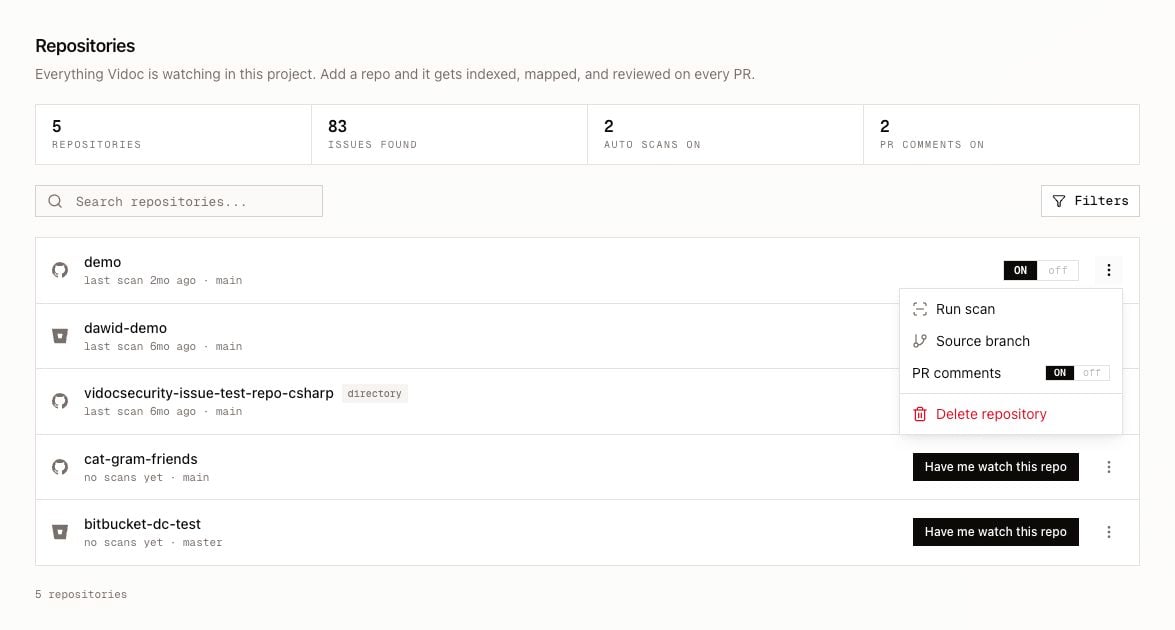
Repository list
The top of the page shows the number of repositories, the issues found, the repositories with automatic scans on, and the repositories with PR comments on.- Use Search repositories… to find a repository by name.
- Click Filters to show only some providers, or only repositories with scanning on (Scanned only).
Turn on PR reviews
When PR reviews are off, the row shows Have me watch this repo. Click it to turn on PR reviews. When PR reviews are on, the row shows an ON / off toggle. When you turn on PR reviews:- Vidoc indexes the repository.
- On the Enterprise plan and on self-hosted installations, Vidoc then runs a first full scan of the default branch (the Source branch setting).
- Vidoc scans each new PR and each new commit in a PR. For all the events that start a scan, refer to Pull request reviews.
- GitLab: Vidoc creates the project webhook.
- Bitbucket: you create the webhook in each repository by hand. Refer to Bitbucket.
Vidoc Cloud: if the organization has no active plan, Vidoc does not index the repository and does not scan PRs. The page shows a banner. An admin clicks Activate plan to open Billing.
Repository options
Open the options menu (⋮) of a repository.Run scan needs the Enterprise plan on Vidoc Cloud. Included in self-hosted installations. On other plans, the menu does not show Run scan.
Repository page
The repository page needs the Enterprise plan on Vidoc Cloud. Included in self-hosted installations. On other plans, a click on a repository opens Pull requests.
- The page shows only the findings of this repository.
- Use Branch to show the findings of one scanned branch. By default, the page shows the source branch.
- If the source branch was never scanned, the page tells you.
- Scan Repository shows the commands to scan the repository with the CLI or with GitHub Actions. Refer to CI/CD.